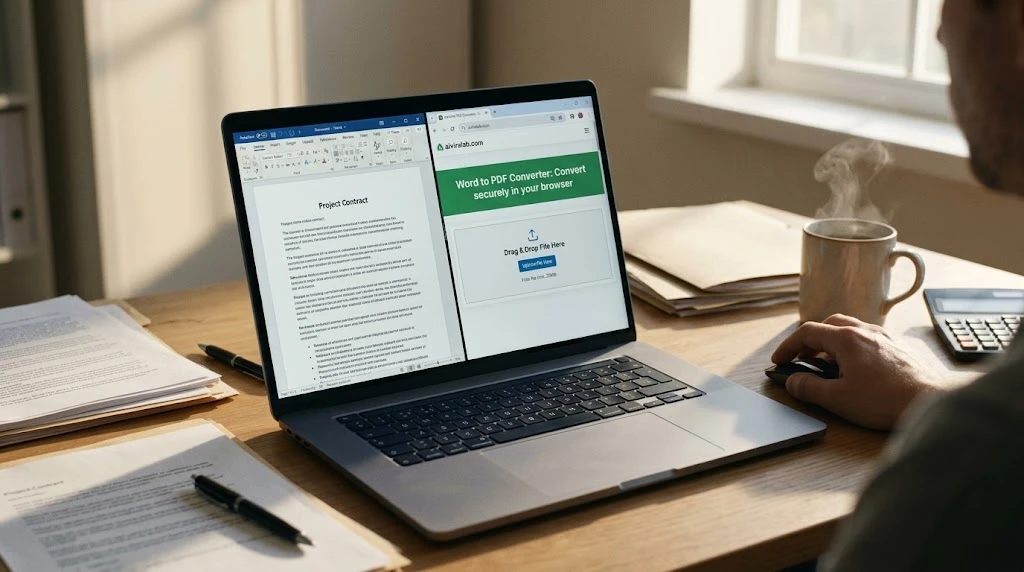
Word to PDF Converter: The Complete Guide
Looking to jump straight into action? Give it a try and convert your word docx to pdf file. Believe me it takes to clicks to get your converted file right in your browser.
Converting a Word document to PDF is a quick, everyday task, but the details make all the difference. The choices you make determine whether your final PDF is private, retains its original formatting, and remains easily shareable. This comprehensive guide covers everything you need to know: how the conversion works, formatting checks, privacy considerations, and when to use each document format.
Why Should You Convert Word to PDF?
A standard Word file (.docx) is designed for active editing, which means its layout changes depending on the device, the installed fonts, and the version of Microsoft Word you use. A PDF (Portable Document Format) is designed to freeze the layout, making it appear identical on every screen.
+-------------------------------------------------------------+
|                WORD (.docx) vs. PDF (.pdf)                  |
+-----------------------------+-------------------------------+
| WORD (.docx)                | PDF (.pdf)                    |
| - Ideal for active editing  | - Ideal for final sharing     |
| - Layout can shift          | - Fixed layout (frozen)       |
| - Requires compatible apps  | - Works on all devices        |
+-----------------------------+-------------------------------+
This predictability is exactly why resumes, invoices, contracts, portfolios, and official forms are almost always shared as PDFs.
How to Convert Word to PDF in 3 Easy Steps
No software installation or paid account is needed to get high-quality PDFs:
- Upload Your File: Navigate to the Free Word to PDF Converter and select or drag and drop your
.docxfile (up to 20 MB). - Review the Live Preview: Confirm that your text, tables, images, and page breaks sit exactly where you intended.
- Download Your PDF: Click Convert & Download to save the finished PDF to your device.
Note: This converter accepts modern .docx files. If you are working with an older .doc file, simply open it in Microsoft Word or another editor, click “Save As”, select “Word Document (.docx)”, and then run the file through the converter.
Where Does Your Document Go? (The Privacy Factor)
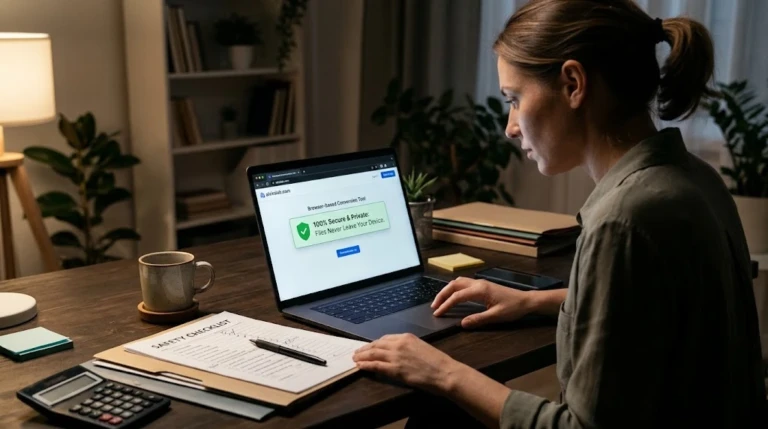
Most online file converters require you to upload your files to a third-party server, where the processing happens before the completed file is sent back. This creates a privacy gap—especially when converting confidential contracts, medical records, or CVs.
Our converter operates differently: it runs 100% in your browser using local code. This means your files never upload to a remote server and stay completely private on your device. For a deeper look at this process, check out our 5-point safety check in Is It Safe to Convert Word to PDF Online?.
How to Prevent Layout and Formatting Issues
Layout shifts like broken page breaks, missing fonts, and misaligned images are common during file conversions. While these issues can be frustrating, most formatting errors can be easily fixed by adjusting your original Word document.
Before you convert, try making your fonts and layout as simple as possible. To troubleshoot shifts, check out our formatting fixes in Convert Word to PDF Without Losing Formatting.
Converting Documents Directly on Your Mobile Phone
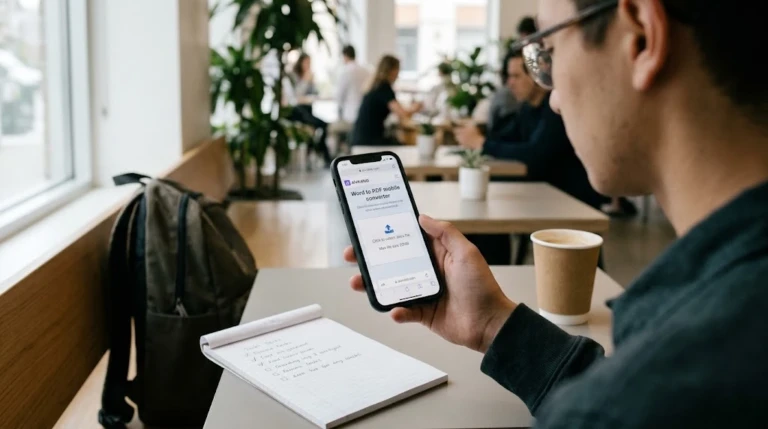
You don’t need a desktop computer to get work done. Modern mobile browsers are fully capable of handling image and file conversions.
By opening the online tool on your phone, you can select files directly from your device’s Downloads folder, preview the layout, and save the PDF instantly. Learn about phone saves and cloud conversions in How to Convert Word to PDF on Your Phone.
Do You Need an “AI” Word to PDF Converter?
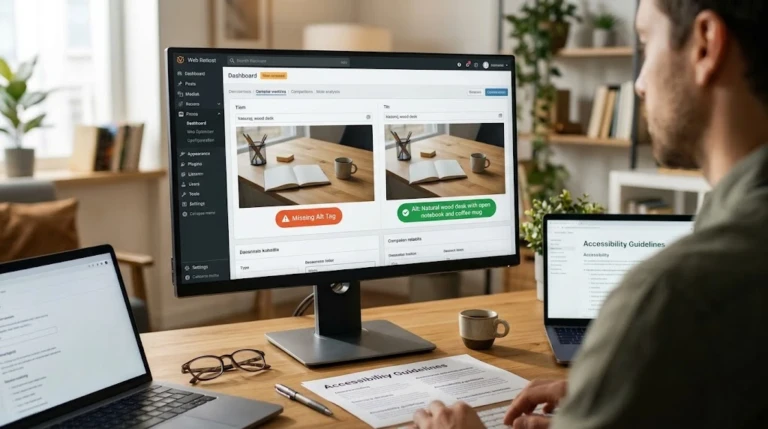
File conversion is a rule-based, mathematical process that requires translation between code formats, not artificial intelligence. What “AI” can do is help optimize and analyze your document before and after conversion.
AI works well for tasks like summarizing PDFs or drafting emails from them, but a standard, secure converter is best for the actual file translation. Learn about these integrations in Word to PDF AI: What AI Converters Really Do.
Format Comparison: DOC vs. DOCX vs. PDF
| Format | Best For | Editable? | Always Looks the Same? |
| .doc | Legacy documents from Word 2003 or earlier | Yes | No |
| .docx | Writing, editing, and collaborative drafting | Yes | Not always |
| Sharing, printing, submitting, and signing | Hard to edit | Yes |
Add a Converter Directly to Your Own WordPress Website
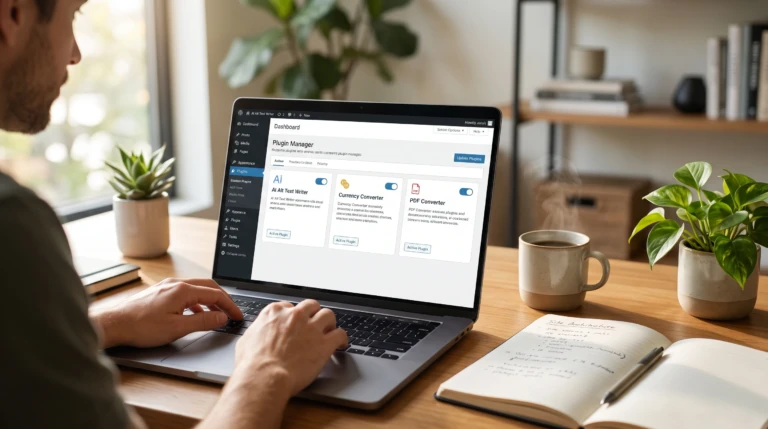
If you run a website, you can easily offer this utility to your own visitors. We provide a lightweight WordPress plugin that lets you put a browser-based converter on any page using a single, simple shortcode.
This setup handles the conversion process entirely in the visitor’s browser, meaning it won’t load your web server or use up your hosting storage. View the setup guide in How to Add a Word to PDF Converter to WordPress, or download the files on our Word Doc to PDF Converter WP Plugin Free Download page.
Frequently Asked Questions (FAQ)
Is this Word to PDF converter free?
Yes. It is completely free, does not require a user account, and won’t add watermarks to your finished documents.
Are my files uploaded to a server?
No. The converter processes your files locally using your browser’s memory, meaning your documents are never uploaded to our servers or seen by anyone else.
What are the maximum file limits?
The tool processes .docx files up to 20 MB. If you have an older .doc file, simply save it as a .docx before converting.
Need More Tools?
Explore our collection of browser-based utilities in the Tools Hub!
Stay connected as we expand this topic cluster:
- Classic Brick Game Online Tool
- The History & Evolution of Retro Brick Games
- How Caual Puzzle Games Improve Cognitive Focus?
- Is It Safe to Convert Word to PDF Online?
- Convert Word to PDF Without Losing Formatting?
- How to Convert Word to PDF on Your Phone?
- Word to PDF AI: What AI Converters Really Do?
- How to Add a Word to PDF Converter to WordPress?