Convert Word to PDF Without Losing Formatting
The most common issue when converting a Word file (.docx) to PDF is “format drift.” When you convert, your once-perfect layout can shift—text overlaps, page numbers end up on the wrong pages, margins change, and images move.
Most formatting errors are caused by five main issues: missing fonts, manual spacing, floating images, complex tables, and unusual embedded objects. If you resolve these problems within Microsoft Word before converting, your final PDF should match your original document exactly.
Pre-Conversion: The 6-Point Formatting Checklist
Follow these checklist steps before converting your document to help keep your layout intact:
- Stick to Common Web-Safe Fonts: If a font used in your Word file isn’t available on the system running the conversion, the tool will replace it with a generic font, causing your text to shift. Play it safe by sticking to standard, universally available fonts like Arial, Times New Roman, or Calibri.
- Use Proper Page Breaks: Don’t hit Enter multiple times to push text to a new page; this creates invisible paragraphs that can drift when the file is converted. Instead, press
Ctrl + Enter(orCmd + Returnon Mac) to insert a real, fixed page break. - Verify Page Size and Margins: Go to the Layout tab in Word and confirm your page size (A4 vs. US Letter). If there is a mismatch, the converter may adjust your margins and push text onto an extra page.
- Set Images “In Line with Text”: Floating images that use text-wrap are the most common cause of layout issues. Right-click your image, select Wrap Text, and choose In Line with Text to keep it anchored to the surrounding paragraph.
- Keep Tables Simple: Avoid using heavily nested tables, merged cells, or tiny columns. If a table is too complex, consider converting it into a flat image instead.
- Simplify Embedded Objects: Avoid layered shapes, custom SmartArt, and complex text boxes, which are highly prone to shifting. Save complex visual elements as an image first, then insert them directly.
How to Convert and Test Your File
- Navigate to the Word to PDF Converter.
- Select or drag and drop your
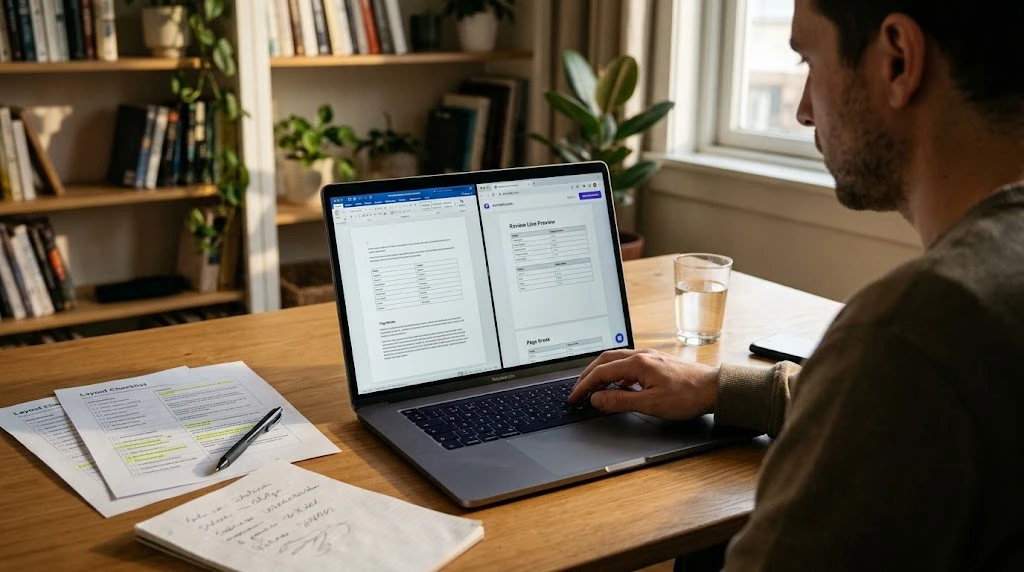
.docxfile (up to 20 MB). - Compare the live on-screen preview with your original Word document, paying close attention to heading placement, tables, and page count.
- If everything looks right, click Convert & Download to save your PDF.
If you are working with an older .doc file, open it in Word, choose “Save As”, select .docx, and then try converting it.
Troubleshooting Common Layout Shifts
| Issue | Likely Cause | Quick Fix |
| Font Looks Different | Missing font on the conversion system | Change your Word document’s font to Arial or Times New Roman, then re-convert. |
| Extra Page Appears | Incorrect page size/margins or empty spacing | Verify Page Size/Margins in Layout; delete empty trailing paragraphs. |
| Image Has Shifted | Floating image alignment | Right-click, select Wrap Text, and set to “In Line with Text”. |
| Table Formatting Breaks | Splitting rows across pages | Adjust table properties, reduce padding, or try making columns wider. |
| Broke Bullet Lists | Non-standard list styling | Use Microsoft Word’s built-in list formats instead of manually inserting characters. |
When You Need Exact Layout Control
No browser-based converter can replicate Microsoft Word’s layout engine perfectly. If your document requires pinpoint accuracy—such as heavily designed marketing materials, print-ready forms, or complex brochures—you should use Word’s built-in “Save As” or “Export” function on the device where it was created, and rely on our free online tool for standard conversion needs.
For more helpful document management and formatting tips, check out our Word to PDF Converter Guide.
Frequently Asked Questions (FAQ)
Why do my fonts change when I convert Word to PDF?
This happens when a custom font is not supported by the converter, causing the system to substitute a default font and shift your text’s alignment.
Why did an extra, blank page appear in my PDF?
This is typically caused by invisible paragraph spaces at the end of your Word file, or A4 / US Letter size mismatches. Deleting empty spaces usually fixes the issue.
Can I convert older .doc files without losing the layout?
The converter is optimized for .docx. To ensure accuracy, save your older .doc files as .docx in Word before uploading.