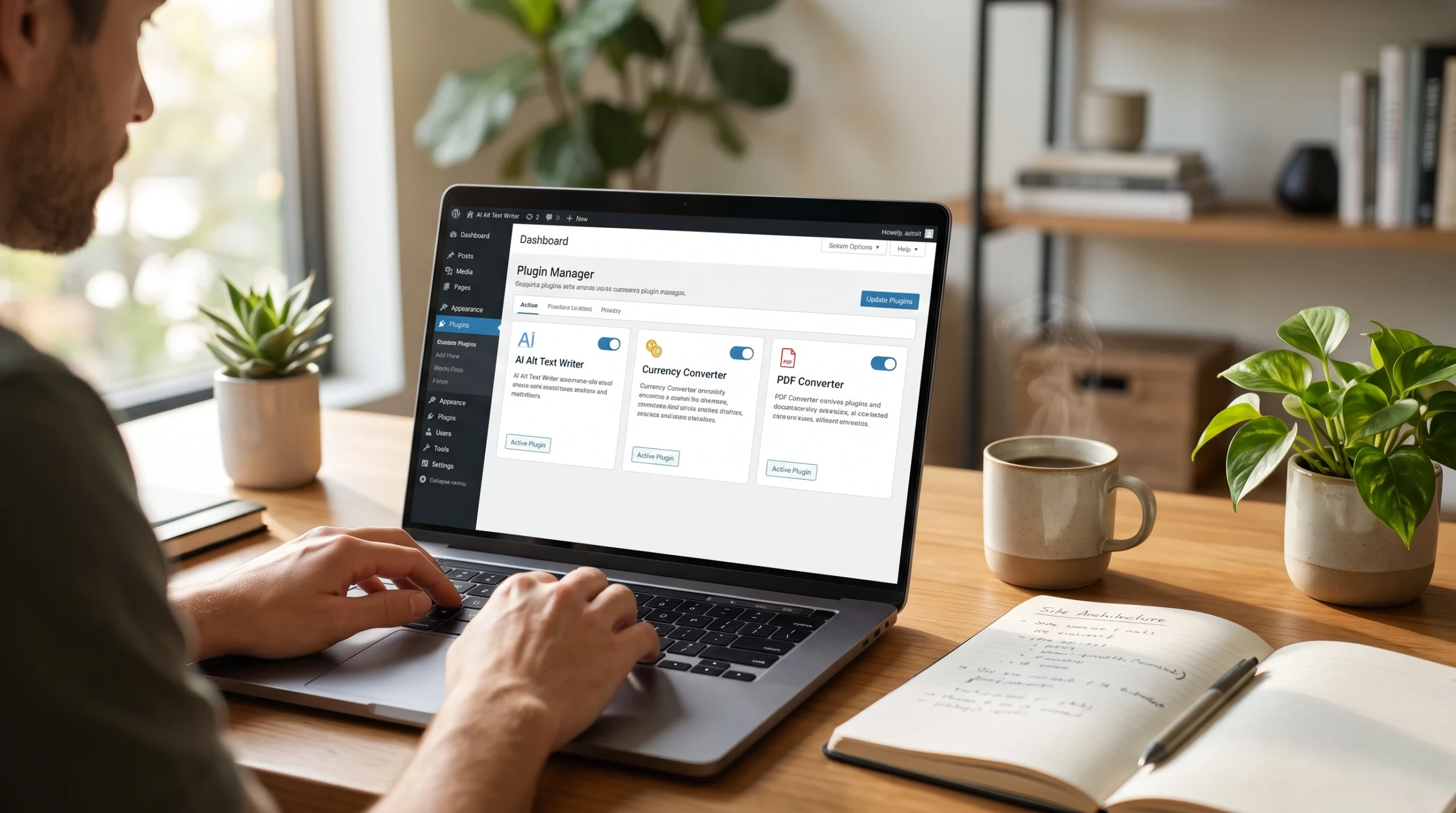
WordPress Plugins Guide: Free Custom Tools for Your Site
⚙️ Looking for smart image optimization? Get our free AI Alt Text Writer Plugin to generate accessible, SEO-rich alt tags automatically!
Running a successful WordPress website requires keeping a balance between adding powerful features and maintaining fast page speeds. Many site owners install dozens of heavy, commercial plugins that slow down loading times, bloat database tables, and require expensive monthly subscriptions.
Custom, single-purpose utilities offer a cleaner approach. By using lightweight plugins built for specific tasks—such as automated image SEO, live currency conversions, interactive calculators, and client habit tracking—you can improve user experience without sacrificing performance.
This comprehensive guide covers our suite of custom WordPress plugins, detailing how each tool works, installation best practices, and performance tips.
Why Choose Lightweight Custom WordPress Plugins?
Heavy, multi-purpose plugin suites often load dozens of unnecessary scripts on every page. This bloat increases Largest Contentful Paint (LCP) times, negatively impacting Google Core Web Vitals and search rankings.
+-------------------------------------------------------------+
|              HEAVY SUITES vs. LIGHTWEIGHT UTILITIES         |
+-----------------------------+-------------------------------+
| COMMERCIAL HEAVY SUITES     | CUSTOM LIGHTWEIGHT UTILITIES  |
| - Excessive script loading  | - Page-specific script load   |
| - Complex database bloat    | - Zero unnecessary queries    |
| - Recurring subscription    | - 100% free & open access     |
+-----------------------------+-------------------------------+
Using lightweight utilities provides three clear benefits:
- Targeted Performance: Scripts load only on pages where the shortcode or feature is actively used.
- Simplified Site Management: Fewer configuration menus and zero bloated database entries.
- Enhanced Privacy: Local client-side processing keeps your visitor data private and off third-party servers.
Our Suite of Free WordPress Plugins
1. AI Alt Text Writer (Featured Image SEO Tool)
Manually writing descriptive alt text for hundreds of media uploads is time-consuming. Our AI Alt Text Writer Plugin automates image description, creating accessible, keyword-relevant alt tags in seconds.
- Key Features: Automated image analysis, WCAG web accessibility compliance, instant one-click insertion.
- Best For: Content creators, bloggers, and e-commerce stores with large media libraries.
2. Word Doc to PDF Converter WP Plugin
Offer your visitors an instant document converter right on your website. The Word Doc to PDF Converter WP Plugin lets users convert .docx files to PDF directly in their browser using a simple {zad_word_to_pdf} shortcode. Instead of curly brackets you can also use square brackets.
3. WordPress Currency Converter
Display real-time foreign exchange rates for international audiences. The WordPress Currency Converter widget provides live currency conversions without relying on heavy third-party iFrames.
4. Smart Calculator Factory
Build interactive financial, health, or custom quote calculators. The Smart Calculator Factory helps turn static pages into engaging, interactive tools.
5. Flamestreak Habit Tracker
Improve user retention and daily visits. The Flamestreak Plugin adds visual habit-tracking components to membership portals and educational sites.
WordPress E-Commerce & Payment Plugins
Planning to sell products, accept online payments, or build a WooCommerce store? Choosing the right payment plugins is essential for security, performance, and a smooth checkout experience.
Explore our comprehensive WordPress E-Commerce & Payment Plugins Guide to understand payment gateway integration, WooCommerce architecture, checkout optimization, and best practices for building a reliable WordPress e-commerce website.
Best Practices for Installing and Managing WordPress Plugins
To keep your website secure, fast, and stable, follow these essential maintenance practices:
- Always Test on a Staging Environment: Before activating any new plugin on a live site, test it on a staging copy to verify theme compatibility.
- Use Shortcodes Efficiently: Place shortcode-based plugins only on dedicated utility pages so scripts load only when needed.
- Keep PHP and WordPress Core Updated: Ensure your web hosting environment runs PHP 7.4 or higher alongside the latest WordPress release.
- Audit Installed Plugins Monthly: Deactivate and remove any plugins that are no longer actively used on your pages.
To learn more about image optimization techniques, read our step-by-step guides on How to Automatically Generate Alt Text in WordPress and WordPress Image SEO & Alt Tags Best Practices.
Frequently Asked Questions (FAQ)
Are all plugins in this guide free to download and use?
Yes. All custom utilities featured in this guide are 100% free to download, with no watermarks, daily limits, or hidden subscription costs.
Will installing multiple lightweight plugins slow down my website?
No. Because these plugins load their assets conditionally—only on pages where their specific shortcode is placed—they maintain fast site speeds.
How do I install a custom .zip plugin in WordPress?
Go to Plugins > Add New > Upload Plugin in your WordPress dashboard, select the downloaded .zip file, click Install Now, and then tap Activate.
Featured Plugin Quick-Links
- 🚀 AI Alt Text Writer Plugin
- 📄 Word Doc to PDF Converter Plugin
- 💱 WordPress Currency Converter Plugin
- 🧮 Smart Calculator Factory Plugin
- Page to Pdf Converter Plugin Free Download
Keep in aye as we expand this topic cluster.