Is It Safe to Convert Word to PDF Online?
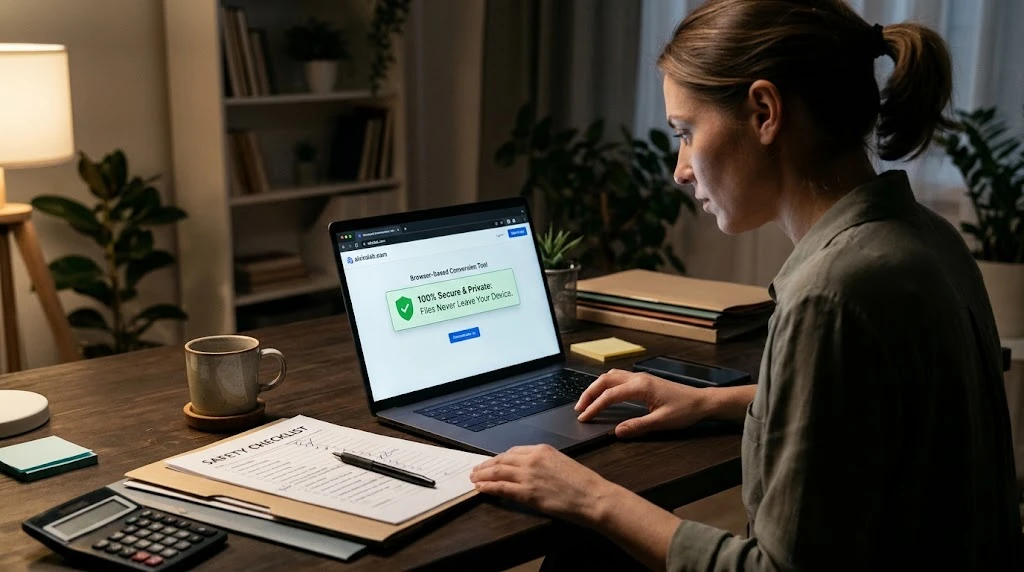
The safety of using an online converter depends entirely on how the tool processes your files. Traditional converters require you to upload your document to a third-party server, asking you to trust that company with your private files. Browser-based converters operate entirely on your own device, meaning they never see or store your data in the first place.
Understanding how a converter handles your data is the most important step in keeping your documents secure.
Two Ways Online Converters Handle Your Files
Not all online file converters are built the same way. When you drop a document into an online box, it generally follows one of two paths:
+-------------------------------------------------------------+
|             UPLOAD CONVERSION vs. IN-BROWSER                |
+-----------------------------+-------------------------------+
| UPLOAD CONVERSION           | IN-BROWSER CONVERSION         |
| - Sends file to cloud       | - Stays on your computer      |
| - File sits on extra server | - Runs in local memory        |
| - Requires trust in company | - 100% private and secure     |
+-----------------------------+-------------------------------+
- Upload Converters: These tools send your file to a remote cloud server, convert it there, and then pass the final PDF back. This means your private files sit on an external machine for some period of time.
- In-Browser Converters: These tools process your files directly on your device using your browser’s local memory. Because your file is never uploaded, your personal information stays completely secure.
Our Word to PDF Converter uses this browser-only approach, meaning your documents never upload to a server.
What Does “Automatic Deletion” Actually Mean?
Many online file converters promise to delete your uploaded documents from their systems after a short period, typically an hour. While this is better than keeping them forever, you have no way to verify if it is happening or if your data remains in their backups or security logs.
By contrast, browser-based tools don’t upload your data in the first place, completely eliminating the risk of data leaks or server breaches.
A 5-Point Safety Checklist for Any Document Tool
Before you use an online tool for your private files, run through this quick safety check:
- Verify the Privacy Policy: Read the fine print to confirm the company does not store, inspect, or sell your document content.
- Check for HTTPS: Ensure the website’s address starts with
https://and displays a secure lock icon. - Avoid Mandatory Account Sign-Ups: If a basic tool requires an email address, phone number, or payment card, search for a simpler alternative.
- Try the Offline Test: Open the converter, disconnect your internet, and try to process a test document. If the tool still works offline, you know your files are staying on your device.
- Analyze Document Sensitivity: While using standard tools for public flyers or event schedules is generally fine, always use a browser-only converter for contracts, medical files, or bank records.
Clean Your Documents Before You Share
Ensuring your files are converted securely is only half of the privacy puzzle. Many people don’t realize that Word files can contain hidden data that carries over to the final PDF:
- Collaboration History: Active track changes, unresolved edits, and internal comments.
- File Metadata: The author’s name, their company, and the original file path.
- Hidden Content: Invisible text, hidden rows, or notes styled in white font.
Always accept or reject track changes, delete internal comments, and verify your document’s final preview before convert and download.
For a complete look at document management, check out our Word to PDF Converter Guide.
Frequently Asked Questions (FAQ)
How can I verify that a converter is safe to use?
Run the offline test: load the tool, disconnect your device from the internet, and convert a test file. If the process finishes without a connection, the tool is safe and processes files locally.
What are the main security risks of online document converters?
The primary risk is having your files intercepted, accessed by employees, or exposed in server data breaches when uploaded to external databases.
Are in-browser tools safer than offline desktop software?
Yes, they offer similar safety because both process files locally on your device without sending them over the internet, with the added benefit of not requiring software installs.