How to Convert Word to PDF on Your Phone
Converting a Word document to a PDF on your phone takes less than a minute and doesn’t require downloading any apps. You only need a standard mobile browser and the .docx file saved on your device or in cloud storage.
Easy Steps to Convert on Your Android or iPhone
You don’t need to install space-consuming apps or register for any accounts to convert files on the go:
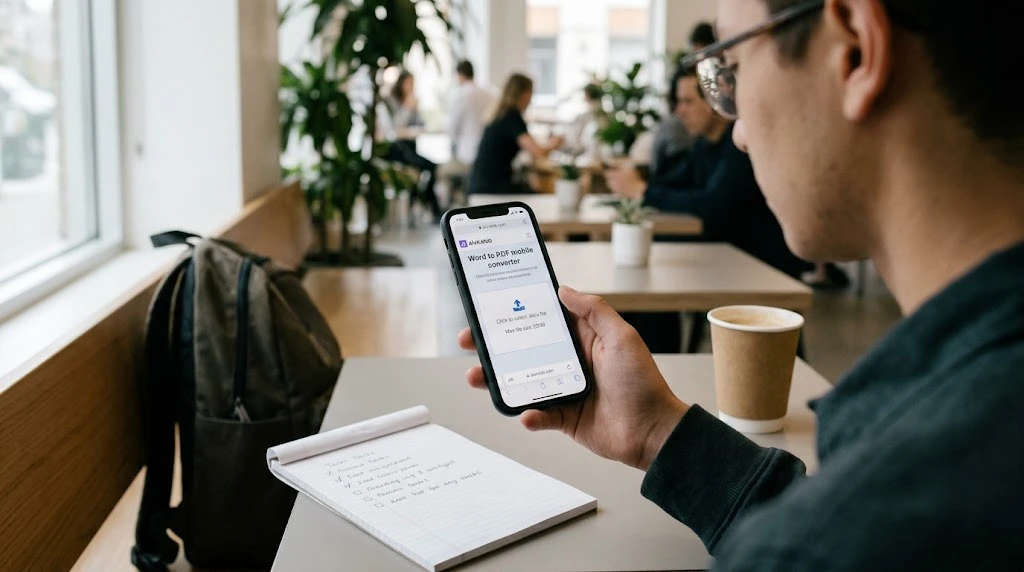
- Go to the Tool: Open your favorite mobile browser (like Chrome or Safari) and navigate to the free Word to PDF Converter.
- Upload Your Word File: Tap the drag-and-drop box and select your file from your phone’s Files, Downloads, or Cloud Storage (such as iCloud, Google Drive, or Dropbox).
- Verify the Layout: Give the tool a moment to load, then scroll through the live preview to confirm your text and formatting look correct.
- Download the Completed PDF: Tap the blue Convert & Download button. Your phone will instantly save the file to your device (usually the “Downloads” folder on Android or the “Files” app on iOS).
+-------------------------------------------------------------+
|                MOBILE CONVERSION WORKFLOW                   |
+-----------------------------+-------------------------------+
| SOURCE                      | PROCESS                       |
| - Android / iOS Browser     | 1. Tap & Upload .docx         |
| - Files / Cloud Storage     | 2. Check mobile preview       |
| - WhatsApp / Email / Drive  | 3. Get instant PDF!           |
+-----------------------------+-------------------------------+
How to Convert Files Received on WhatsApp or Email
If you need to convert an attachment you received in a messaging app, follow these steps:
- From WhatsApp / Email: Tap and open the attachment on your phone. Look for the Share or Save icon, choose Save to Files (or Downloads), and then select it through the browser converter.
- From Google Docs: Open the file in the Google Docs app, tap the three dots, select Share & Export > Save As, and choose Microsoft Word (.docx). Now, you can run that downloaded file through our converter.
- From Older Formats (.doc): Older formats can sometimes cause display issues on mobile. If you can, save the document as a
.docxbefore converting.
Tips for Getting Better Mobile Results
- Zoom to Review the Layout: Touch and pinch the screen to zoom out in the browser preview. This will let you check the entire document’s margins and page breaks.
- Check Your Page Breaks: Complex tables and page breaks can sometimes shift on smaller mobile screens, so inspect those areas closely.
- Keep Your Fonts Simple: Standard, widely used fonts will ensure your mobile preview matches the final document without issues.
- Close Unused Browser Tabs: If you are converting a larger file (up to 20 MB) and the tool feels slow, close other apps and tabs to free up your phone’s memory.
To understand the best formats to use based on your needs, read our comprehensive Word to PDF Converter Guide.
Frequently Asked Questions (FAQ)
What app do I need to convert Word to PDF on my iPhone?
None! You can run the entire conversion directly through Safari or Chrome using an online, browser-only tool.
Where do converted PDF files save on Android and iOS?
On Android, they typically go to the Downloads folder. On iPhone, you’ll find them in the Files app, usually under the “Recent” or “Downloads” section.
Is it safe to convert files on a public Wi-Fi network?
Yes, as long as you use a browser-only tool with a secure connection (https://). Since your files are processed locally on your device, they aren’t sent over the public network.