Image to WebP Converter: Fast, Free & Private
Image Format & WebP Converter
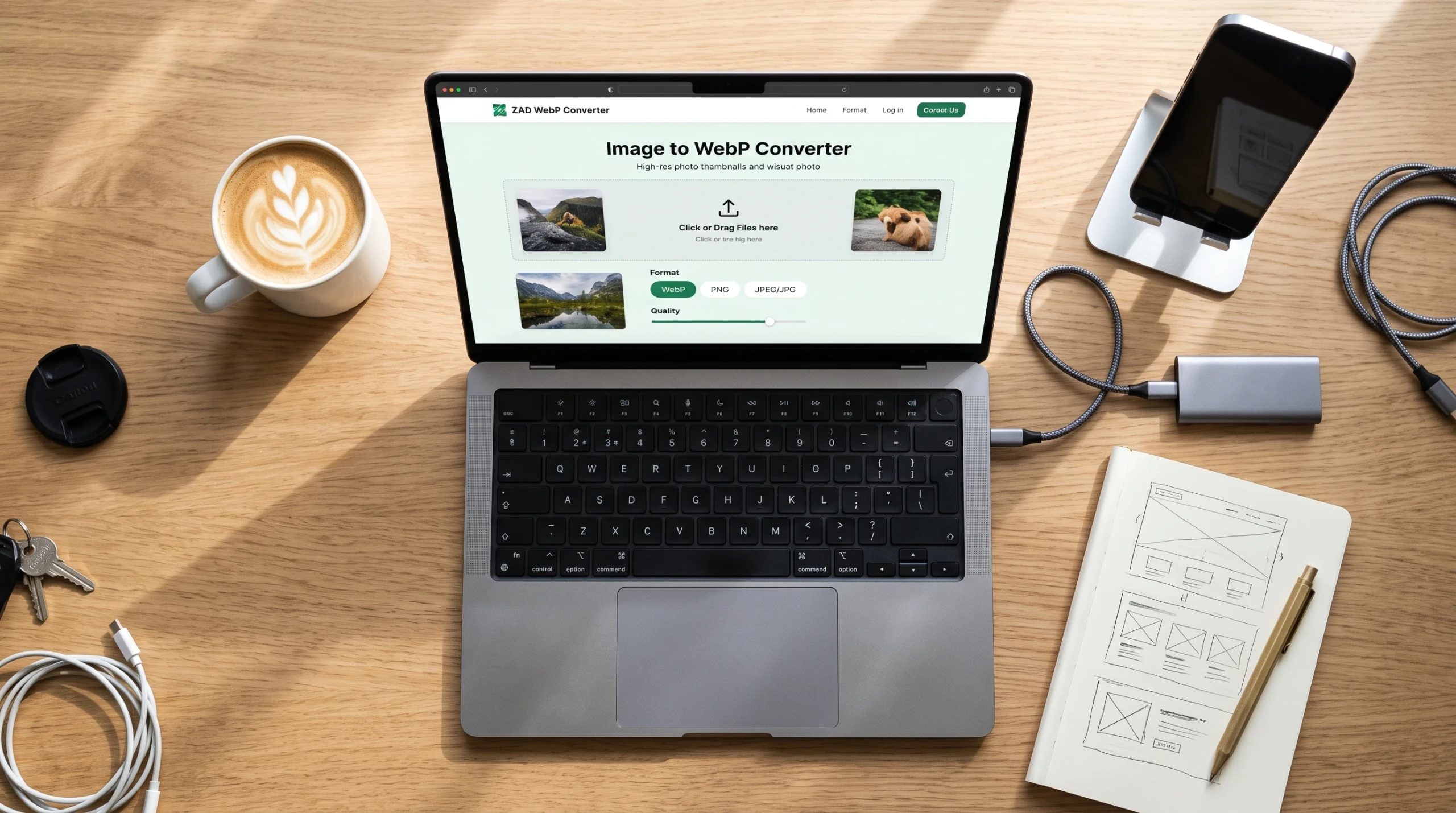
Convert JPG, PNG, GIF, BMP to WebP, JPEG, PNG, or GIF with instant high-quality rendering.
Choose an Image or Drag & Drop Here
Supports WebP, PNG, JPG, JPEG, GIF, BMP, SVG
Heavy, unoptimized images are the primary cause of slow web pages, frustrating bounce rates, and dropped search rankings. When an image takes several seconds to render, visitors leave before they ever engage with your content. Major search engines like Google heavily factor page speed into overall SEO performance, prioritizing websites that pass Core Web Vitals and load in the blink of an eye.
Yet optimizing your visual assets often feels like an uphill battle. Most online conversion sites make you wait in long queues, impose daily conversion caps, demand expensive monthly subscriptions, or worse—upload your proprietary graphics and personal photos onto unknown cloud servers.
To eliminate this friction, we integrated an instant, clinical-grade conversion tool directly onto this page. Using this interactive suite, you can convert PNG, JPEG/JPG, and GIF files into modern WebP format within milliseconds. Because the tool runs entirely inside your web browser, your files never touch our servers or any third-party infrastructure—guaranteeing 100% data privacy and security.
What Makes This Image to WebP Converter Practical & Effective?
Traditional image tools rely on resource-heavy backend scripts or cloud APIs that can stall, crash, or risk exposing sensitive files. This tool takes a fundamentally modern approach by utilizing native HTML5 Canvas rendering within your local browser session:
- 100% Privacy & Zero Server Uploads: Your media files never leave your device. Processing happens purely inside your local browser memory, keeping hosting disk usage and server CPU footprint at zero.
- Instant Conversions in Milliseconds: Forget waiting for files to upload to a remote queue and then download again. As soon as you add an image, the Canvas rendering engine produces the output right away.
- Precise Quality Compression Slider: An intuitive slider allows you to dial in your exact compression balance anywhere from 10% to 100%. You decide the trade-off between crystal-clear sharpness and reduced file weight.
- Multi-Format Versatility: The converter handles more than just standard WebP. You can seamlessly convert between WebP, PNG, JPEG, and GIF (such as converting WebP to PNG for graphic software or JPG to WebP for production web pages).
- Live File Size & Visual Preview: Before downloading, view the converted image preview alongside estimated file size reductions to ensure visual quality meets your standards.
- Completely Free with No Hidden Limits: No daily usage limits, watermarks, forced sign-ups, or recurring subscription fees. Convert as many assets as you need, whenever you need them.
+-------------------------------------------------------------+
|                IMAGE OPTIMIZATION WORKFLOW                  |
+-----------------------------+-------------------------------+
| [ ] Drag & Drop Original    | [ ] Adjust Quality Slider     |
| [ ] Select Output Format    | [ ] Instant 1-Click Download  |
+-----------------------------+-------------------------------+
Why Modern Websites Must Switch to WebP Format
WebP is a modern image format developed by Google specifically to provide superior lossless and lossy compression for web assets. Continuing to rely solely on legacy formats like uncompressed PNG or bulky JPEG can negatively impact page speed and visitor retention:
1. Significant File Size Reduction
PNG files are fantastic for sharp illustrations and transparency, but their raw file sizes are notoriously heavy. JPEGs are easier to compress, but aggressive compression often creates visible pixel artifacts. WebP combines the best traits of both: it supports transparency like a PNG while averaging 25% to 34% smaller file sizes than comparable JPEGs without noticeable quality degradation.
2. Passing Core Web Vitals & Improving SEO
A critical metric in Google’s ranking formula is Largest Contentful Paint (LCP), which tracks when the main content of a webpage finishes loading. Replacing a heavy 1.5 MB hero image with an 80 KB to 150 KB WebP equivalent dramatically reduces render times, helping turn your PageSpeed Insights scores green.
3. Lower Bandwidth & Faster Mobile Loading
Mobile audiences frequently browse over limited or fluctuating cellular connections. Delivering streamlined WebP graphics reduces mobile data usage, lowers bounce rates, and keeps readers on your page longer.
Step-by-Step Guide: How to Use the Converter for Best Results
You do not need specialized software or technical expertise to get started. Follow these simple steps for quick conversions:
- Add Your Source Image: Drag and drop your image directly into the conversion card above, or click the upload area to choose a file from your computer or phone.
- Select Target Format: If your goal is website optimization, leave the default setting as WebP. If you need a transparent graphic for offline design work, switch to PNG or JPEG.
- Set the Compression Level:
- General Web Graphics & Blogs: Set the slider between 80% and 85%. This cuts down file weight by up to 70% while preserving sharp details for standard screens.
- High-Detail Photography & Portfolios: Set the slider between 90% and 95% to retain subtle color gradations and edge sharpness.
- Check the Live Preview & Size Metrics: Review the live image preview and confirm the newly reduced file size compared to the original. Check edge clarity and text elements to ensure they look sharp.
- Download Instantly: Click Download Image to save the optimized file directly to your local drive without delays or server redirects.
Best Practices for Image Optimization Before Publishing
Converting to WebP is a major step forward, but keeping these additional guidelines in mind will further optimize your site:
- Resize to Exact Display Dimensions: If your content layout displays images at a maximum width of 1200 pixels, avoid uploading 4000-pixel raw camera files. Resize dimensions first, then run the asset through the converter.
- Select the Right Quality Tier: An 80% to 85% quality level is ideal for general blog images. If your graphics contain sharp UI elements or text overlays, consider bumping the slider to 90% to avoid minor compression fuzziness around typography.
- Use Descriptive Filenames: Always save your converted files with clear, keyword-relevant names (e.g.,
modern-kitchen-interior-design.webpinstead ofIMG_04921.webp) to support organic image search ranking.
Who Is This Tool Designed For?
- WordPress Site Owners & Bloggers: Anyone wanting to optimize their media library without bloating their hosting server or paying for expensive third-party image compression plugins.
- SEO Specialists & Web Developers: Professionals aiming to achieve 90+ PageSpeed Insights and GTmetrix scores for client projects.
- Graphic & UI/UX Designers: Creators needing to export mockups, portfolio work, and design components into web-ready formats quickly.
- Privacy-Focused Professionals: Teams handling proprietary graphics, sensitive client documents, or internal screenshots who cannot risk uploading assets to third-party cloud tools.
Frequently Asked Questions (FAQ)
Are WebP images supported across all modern browsers?
Yes. Google Chrome, Apple Safari, Mozilla Firefox, Microsoft Edge, and all major mobile browsers natively support WebP images without requiring external fallbacks.
Will converting images to WebP reduce their visual quality?
Not noticeably when using standard settings. Modern compression algorithms selectively remove data that the human eye cannot easily discern. An 80% to 85% setting achieves massive size reduction while keeping the image crisp and clear.
Are my private images saved or tracked on your server?
No. The conversion process relies entirely on HTML5 Canvas technology running locally inside your browser session. Your files are never uploaded, stored, or viewed by anyone else.
Can I convert other formats back to PNG or JPEG?
Yes. The converter works bidirectionally. You can upload a WebP file and easily convert it back into a standard PNG or JPEG whenever needed.
Scroll back to the top of the page, drop your image into the converter, and optimize your assets with zero waiting time!